How Does The Screen Saver Functionality Work?
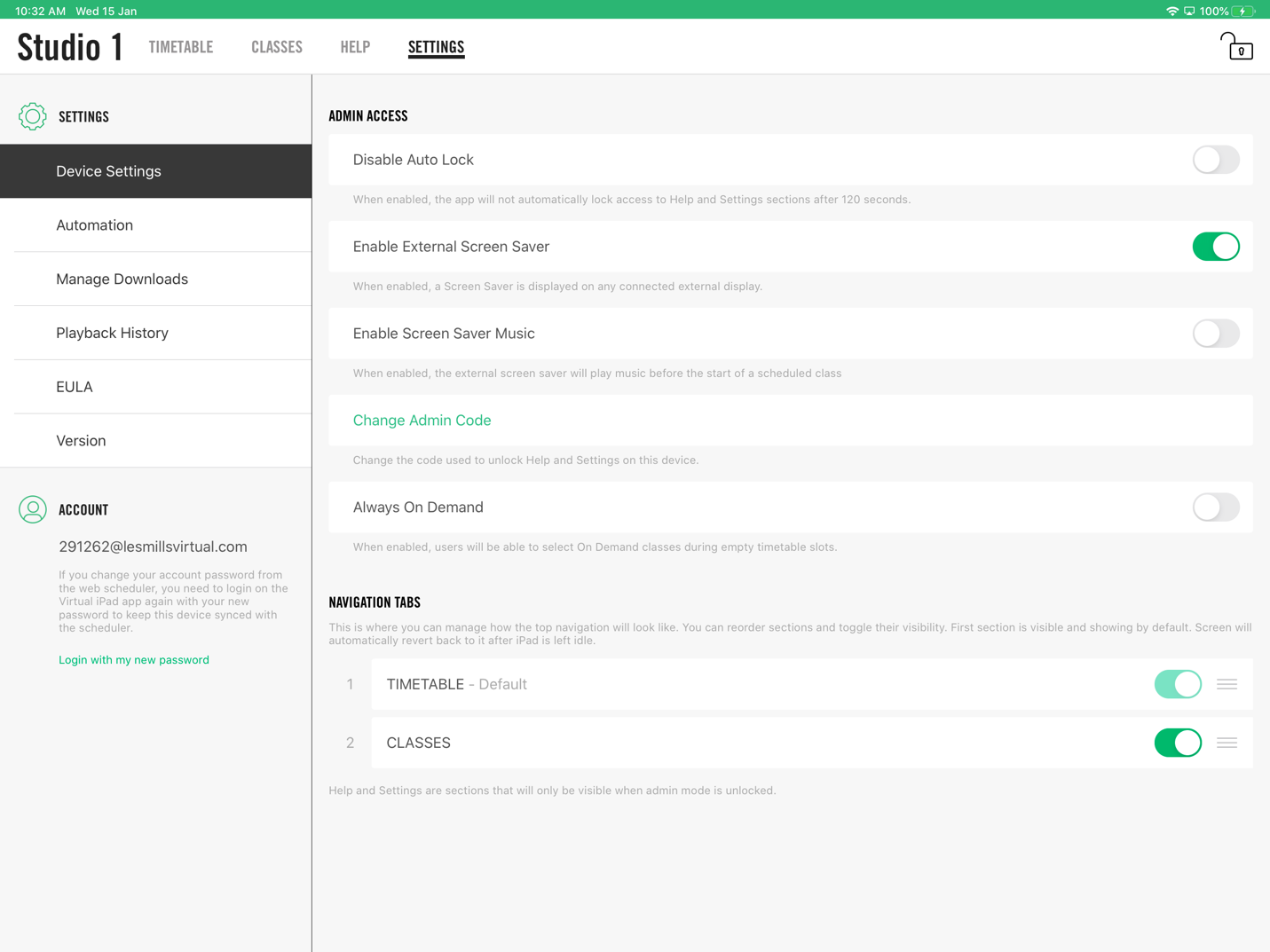
If you would like to display an image of what class is coming next on your Virtual screen during breaks in classes, this can be enabled by toggling the Screen Saver to ON as follows:
- Unlock the padlock to the top right of the App
- Enter your admin code
- Navigate to SETTINGS > Device Settings >Enable External Screen Saver
- Toggle to ON (green)
To create atmosphere before a Virtual class starts, Screen Saver music can be enabled in addition to the Screen Saver. This plays a virtual soundtrack for two minutes before the class starts. As the class starts the music will fade out. To enable this feature please ensure the Screen Saver is enabled first, as above and follow the below steps:
- Unlock the padlock to the top right of the App
- Enter your admin code
- Navigate to SETTINGS > Device Settings > Enable Screen Saver Music
- Toggle to ON (green)

Was this article helpful?
That’s Great!
Thank you for your feedback
Sorry! We couldn't be helpful
Thank you for your feedback
Feedback sent
We appreciate your effort and will try to fix the article